
• Skip to main content
  • Skip to secondary menu
  • Skip to primary sidebar
  • Skip to footer
  • LOGIN
  • Law Office ManagerHOME
  • Book StoreBook Store
  • WebinarsWebinars
  • LOGIN
  • Manage Your Account
  •  
Law Office Manager

Law Office Manager

  • Hiring
  • Increasing profits
  • Technology
  • Billing
  • Managing staff
  • More! ⇩
    • Newsletter Archive
    • Time tracking
    • Client relations
    • Termination
    • Tool Box
    • Risk management
    • Recordkeeping
    • Cartoons
    • Reader tips
    • Purchasing & leasing
    • Marketing
    • Managing the office
    • Information security
    • Your career
    • Working with lawyers
    • Employee benefits
    • Compliance
    • Workplace Safety
  • Special Reports

Quick Tip: How to create a keyboard shortcut for a Word Style

May 17, 2019

By Doug Striker  bio

We all know that using styles to format a Word document leads to more stable documents and efficient editing. But, are you efficiently applying styles?

You can use a keyboard shortcut for any style, including built-in styles such as Normal and Heading 1, 2, etc. Some styles already have their own shortcuts, but you can change them, if you want.

The most commonly used built-in styles with pre-programmed shortcuts are:

  • Normal – Ctrl+Shift+N
  • Heading 1 – Ctrl+Alt+1
  • Heading 2 – Ctrl+Alt+2
  • Heading 3 – Ctrl+Alt+3
  • List Bullet – Ctrl+Shift+L

You can create a shortcut for other styles or edit the built-in ones.

1. Right-click on the Style name from the Gallery OR open the Styles list and click on the dropdown next to the style name.

2. Select Modify.
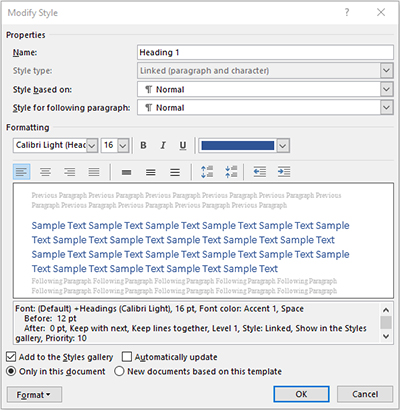
3. From the Modify Style dialog box, click on Format in the lower-left corner.

4. From the Format menu, select Shortcut key.

5. Click into the Press new shortcut key field and use the keyboard to indicate which keys you want to assign to the selected style.

6. Click on Assign.

7. Specify where you want to save your changes – generally this is in Normal.dotm.

8. If the keystroke combination you choose is already assigned to another style, that information is shown following Currently assigned to. You can choose to overwrite the current assignment. This information is merely provided to alert you that you will be changing the keyboard shortcut.

9. Click on Close to close the dialog box.

10. Click on OK to close the Modify Style dialog box.


Editor’s picks:

How to become a Microsoft Word ninja and boost your productivity
#


How document automation can save you thousands#


Six ways your firm’s information may be gridlocked#


Filed Under: Topics, Managing staff, Managing the office, articles Tagged With: Productivity, documentation, quick tips, Word

Primary Sidebar

Free Reports

    • Guide to Advanced Hiring Techniques
    • Employee Morale in the Law Office
    • Workplace Bullying

Free Premium Reports

    • 7 Smart Cost-Cutting Strategies for Your Law Office
    • Guide to Advanced Hiring Techniques
    • Employee Morale in the Law Office
    • Workplace Bullying
    • 7 Proven Ways to Make Your Billing and Collections More Profitable
    • 7 Simple, Proven Steps to Hiring the Right Staff
    • 7 Policies Every Law Office Should Have

Download Current Issue

Current Issue

Recent Headlines

Billing: Should You Keep It In-House or Go Outsourced?

Year-End Reflections: Taking Stock of Your Law Office’s Successes and Challenges

Winter Safety Checklist for Parking Lots, Walkways, and Office Entrances

January To-Do List for a Busy Law Office Manager

Want to Work Smarter, Not Harder? AI Can Help You Do Just That

Your Career

Year-End Reflections: Taking Stock of Your Law Office’s Successes and Challenges

Want to Work Smarter, Not Harder? AI Can Help You Do Just That

Administrator a Key Player in Firm’s Ethics and Integrity

Reconnecting with Purpose: How to Invite Someone from the Past into Your Career Network

To Make a Point, Use the Body Language that Supports Your Words

Deliver Your Message

Footer

Return to the Top

Download the Current issue
Monthly Magazine Archive
Advertise in Law Office Manager
Download Media Kit

Become a Premium Member
Download a Sample Issue of LOM
Renew your Law Office Manager Membership
Manage Your Account
Contact Law Office Manager
About Law Office Manager
Terms & Conditions
Privacy Policy
Give Us Feedback


Copyright © 2025 Plain Language Media, LLLP • 1-888-729-2315